TrailBeat installation Instructions
TrailBeat public beta is now available for testing using Apple's "TestFlight" for iOS.
There are two steps to this process. 1) Install TestFlight from the Apple iPhone App Store and 2) Install TrailBeat from Test Flight.

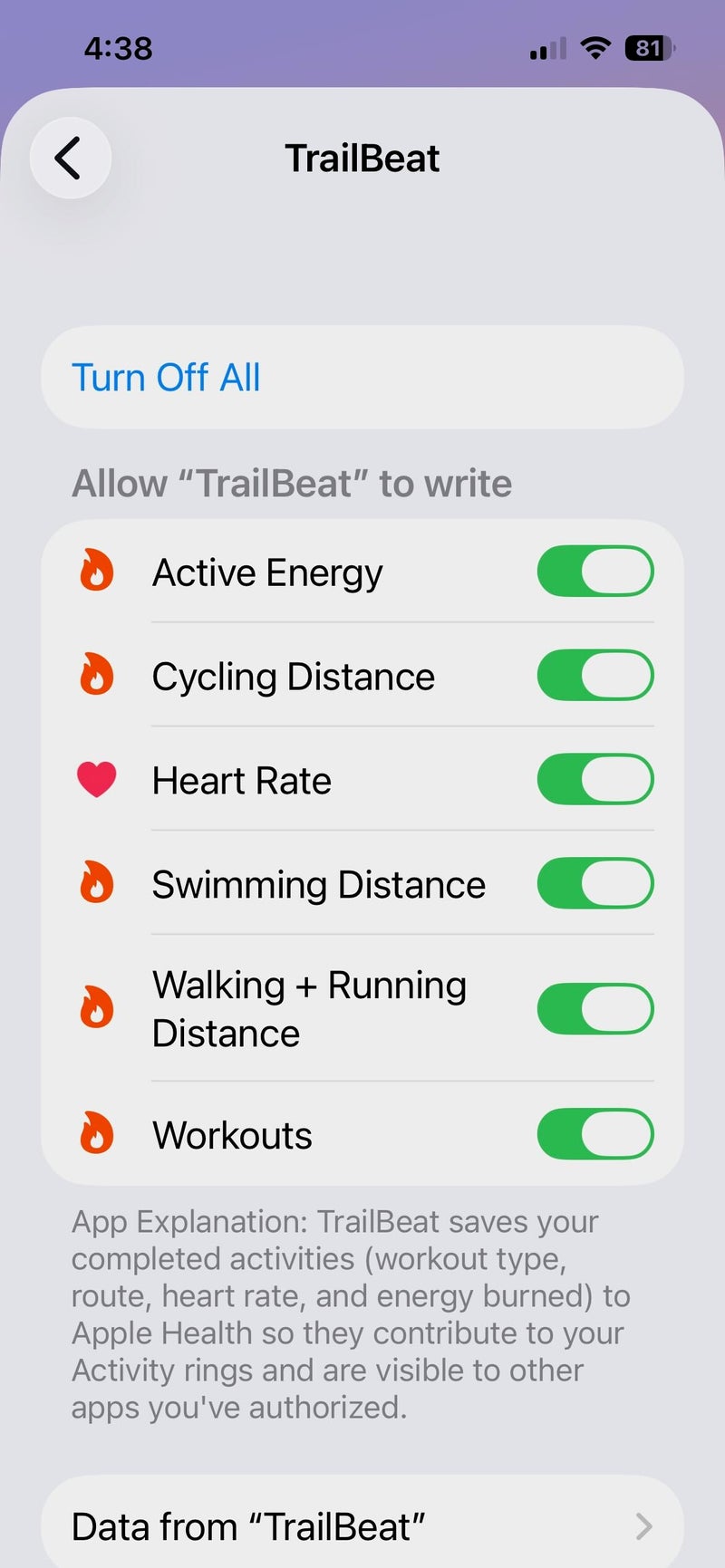
After completing the installation above
On you iPhone:
1. Go to the Health app → click on your profile picture (top right)
2. Select Privacy → Apps
3. Select TrailBeat
4. Turn On All
Where to Start
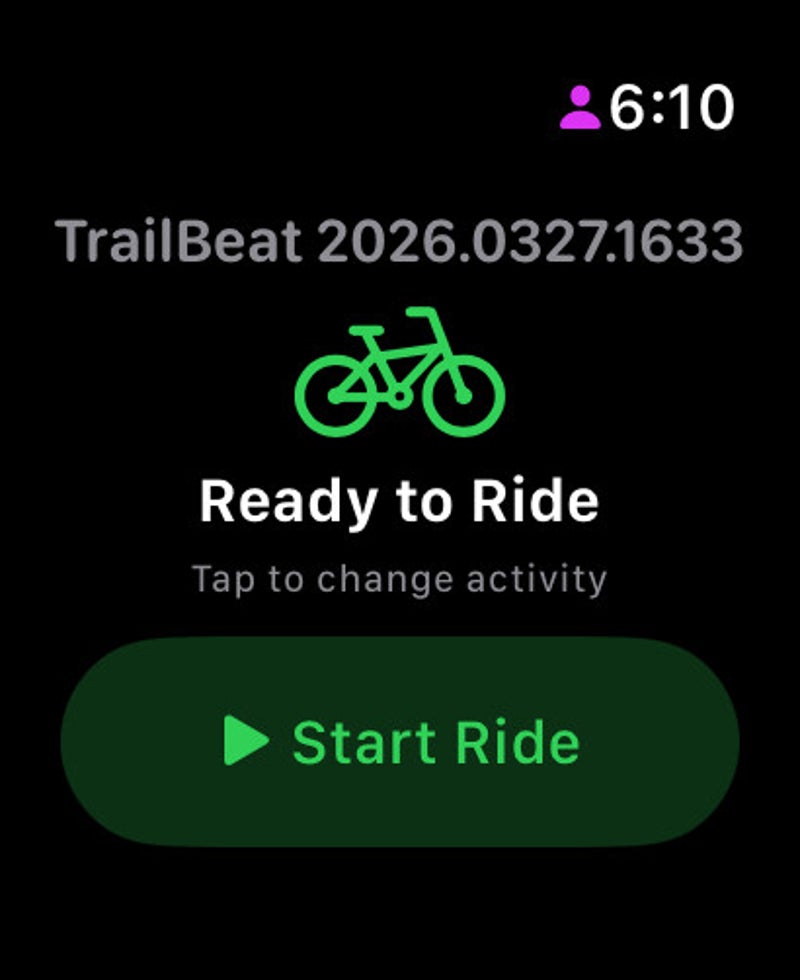
Launch TrailBeat from your Apple watch or iPhone. Select your default activity and then press Start from your iPhone or Apple watch to begin. Pro Tip: Start with your Apple watch to insure you capture Heart Rate.
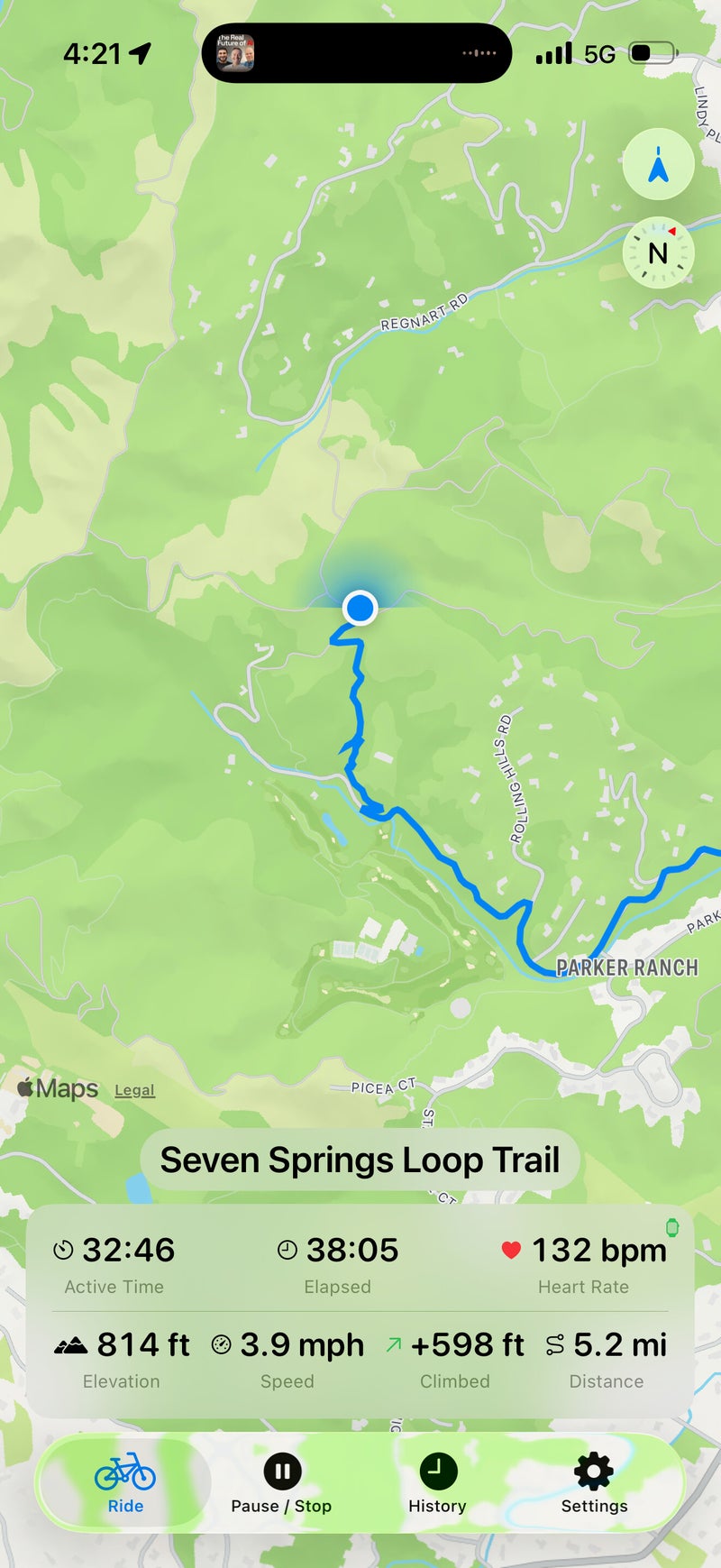
A live map to see where you've been, where you are and where you're going.
TrailBeat lets you to focus on the experience, not the tech, delivering a beautiful, real-time live map to your iPhone of your route (data plan required) displaying your route, current trail name and real time status indicators as you move, keeping you oriented and motivated without overwhelming your screen.
TrailBeat lets you customize the indicators you want to see, making your experience truly yours.
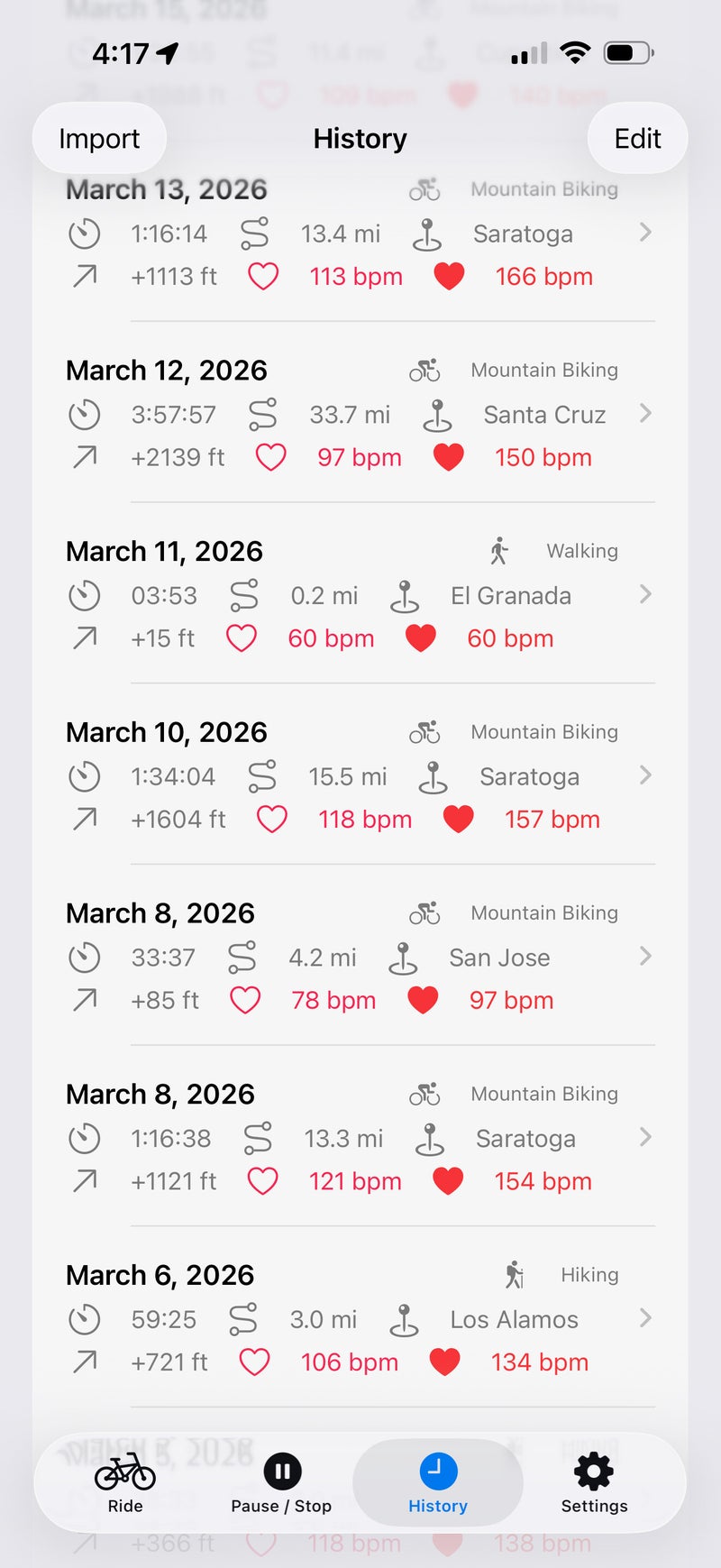
Your journey, your data, always viewable under History
TrailBeat makes your experience better by putting years of activities at your finger tips. TrailBeat tracks your route, distance, time, elevation gain, heart rate, pace, calories, and more.
History packed with details.
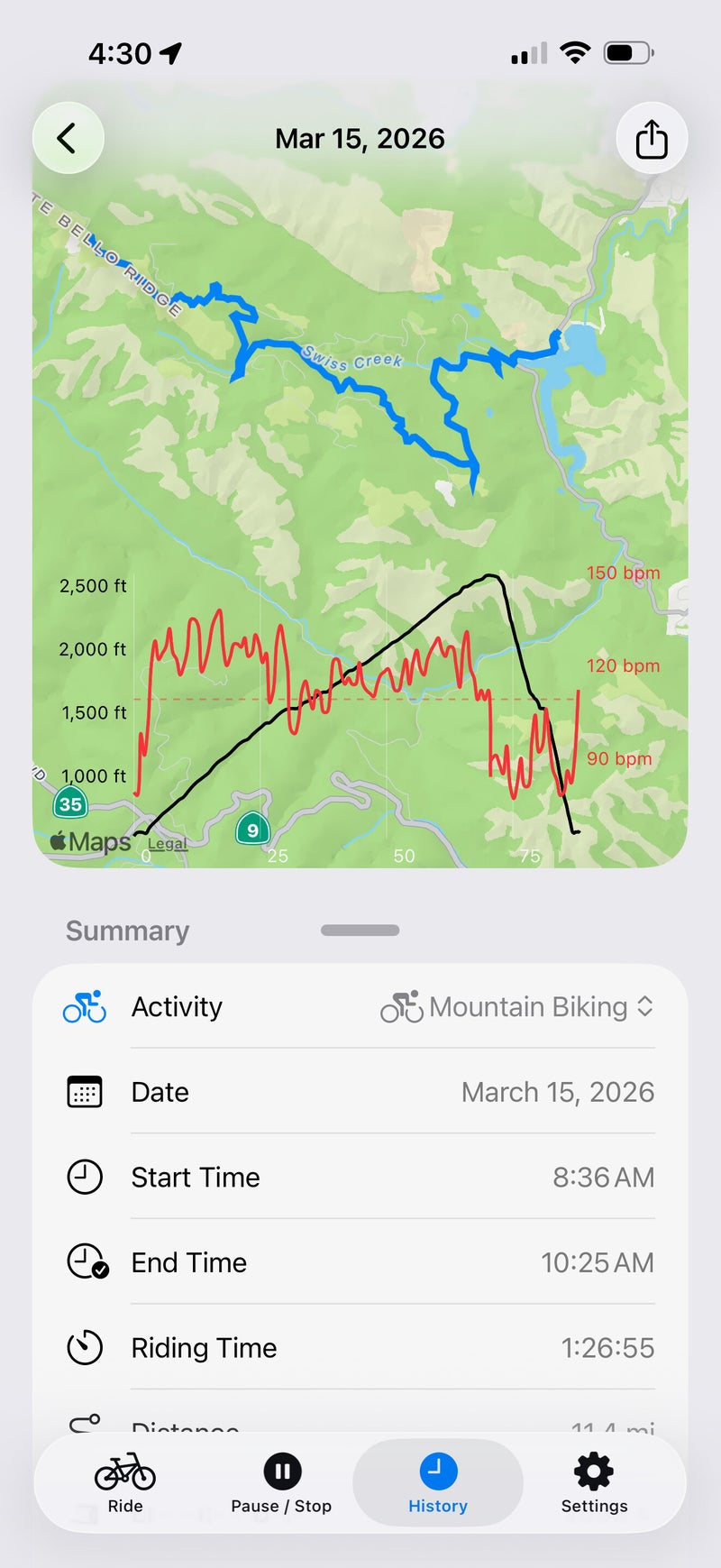
TrailBeat captures and saves a plethora of data in History with a map of the route and a translucent chart plotting heart rate and elevation. Scrolling across the chart reveals a marker tracing your route. In addition to a Summary of your activity, you will find health indicators, environment conditions and a place for your personal notes. And your mile splits are automatically calculated so you know how you performed.